Claude Code Deployment Guide
Install Claude Code, point it at JZS Token, and get your first answer. Covers the first-run error, CC Switch setup with screenshots, what to do when the chat never replies, and manual setup on every OS.
Official docs: docs.claude.com
What you need
https://jzstoken.com/api/v1 at the end. Claude Code adds /v1/messages itself.https://jzstoken.com/api/v1 for Claude Code. Every other tool on this site wants /api/v1; Claude Code is the one exception.Before your first launch: skip the first-run check
On its very first start, Claude Code tries to reach Anthropic's own servers. When you use a gateway like ours, that check fails and you see this:
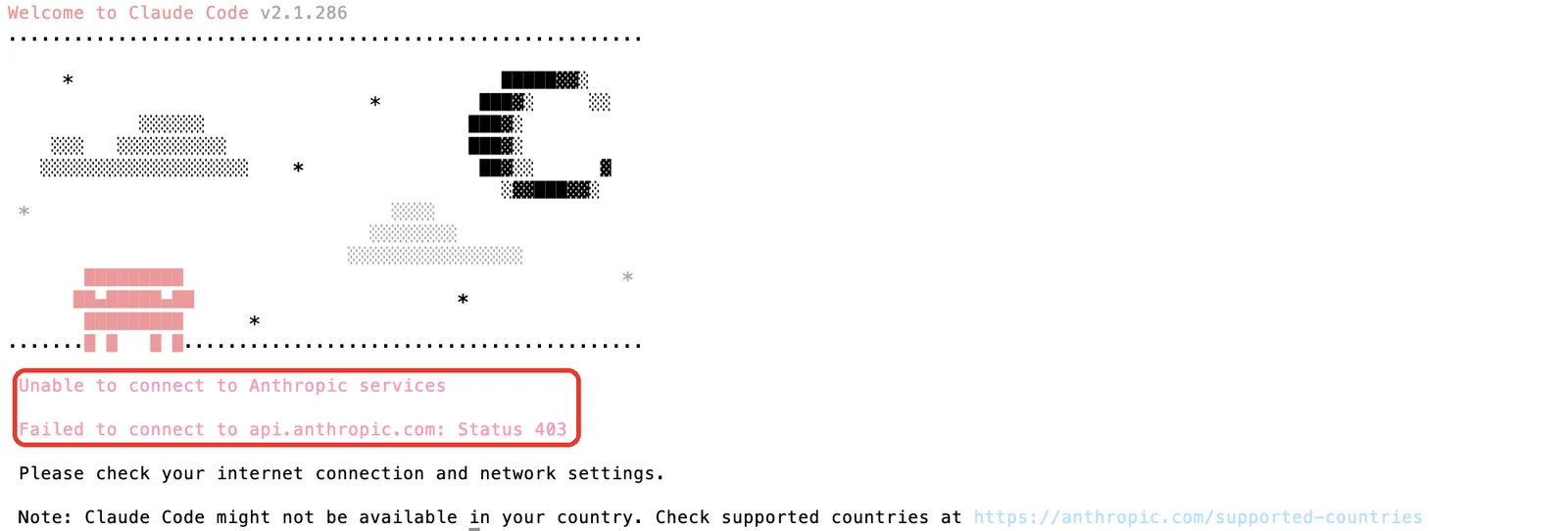
Pick one of the two fixes below, then start Claude Code again.
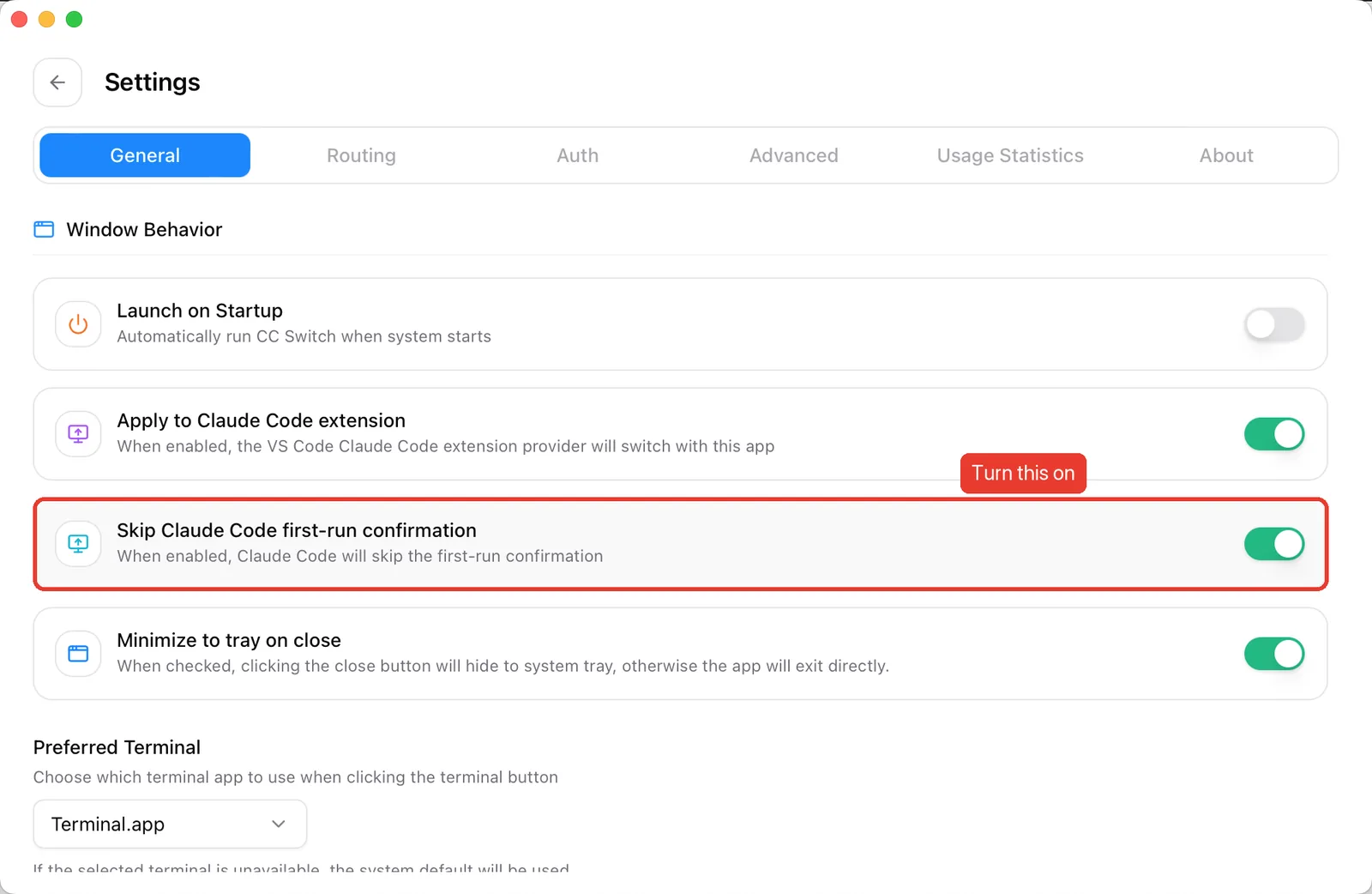
Option 1: turn it off in CC Switch (recommended)
Install CC Switch for macOS, Windows or Linux. Open Settings → General, scroll to Window Behavior, and switch on Skip Claude Code first-run confirmation.
Option 2: edit ~/.claude.json by hand
Open ~/.claude.json in your home folder and add "hasCompletedOnboarding": true as the last field:
{
  "installMethod": "unknown",
  "autoUpdates": true,
  "firstStartTime": "2025-07-14T06:11:03.877Z",
  "userID": "xxxx",
  "projects": { },
  "hasCompletedOnboarding": true
}
Save the file and run claude again.
Set up with CC Switch (recommended)
CC Switch is a free desktop app that writes Claude Code's config for you. No environment variables, no hand-edited JSON, and you can switch between providers with one click.
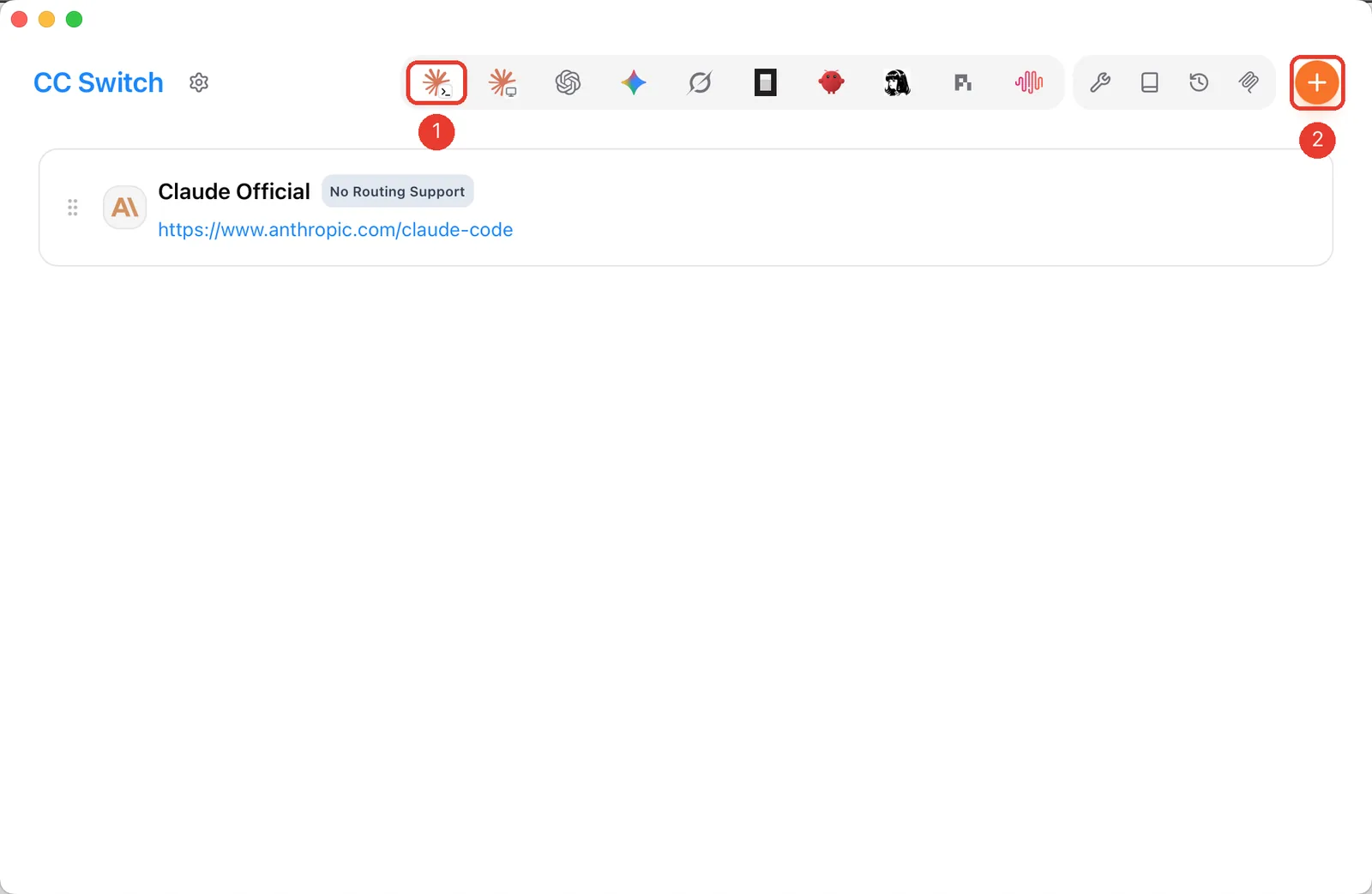
1. Open the Claude Code tab and click +
The first icon in the top bar is Claude Code. Select it (1), then click the orange + in the top-right corner (2).
2. Keep "Custom Configuration"
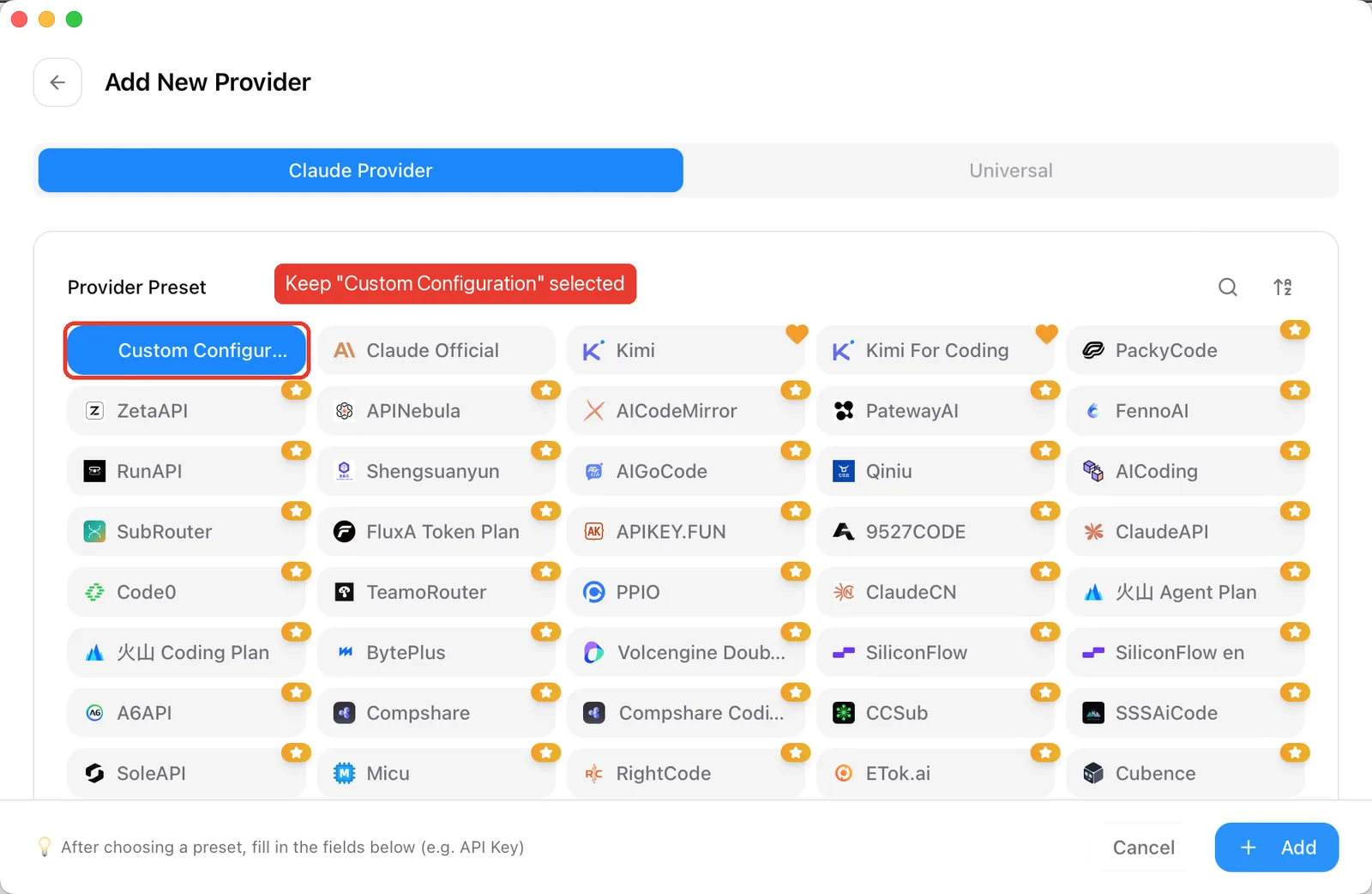
The Claude Provider tab opens with a long list of presets. Leave Custom Configuration selected (it is the default) and scroll down to the form.
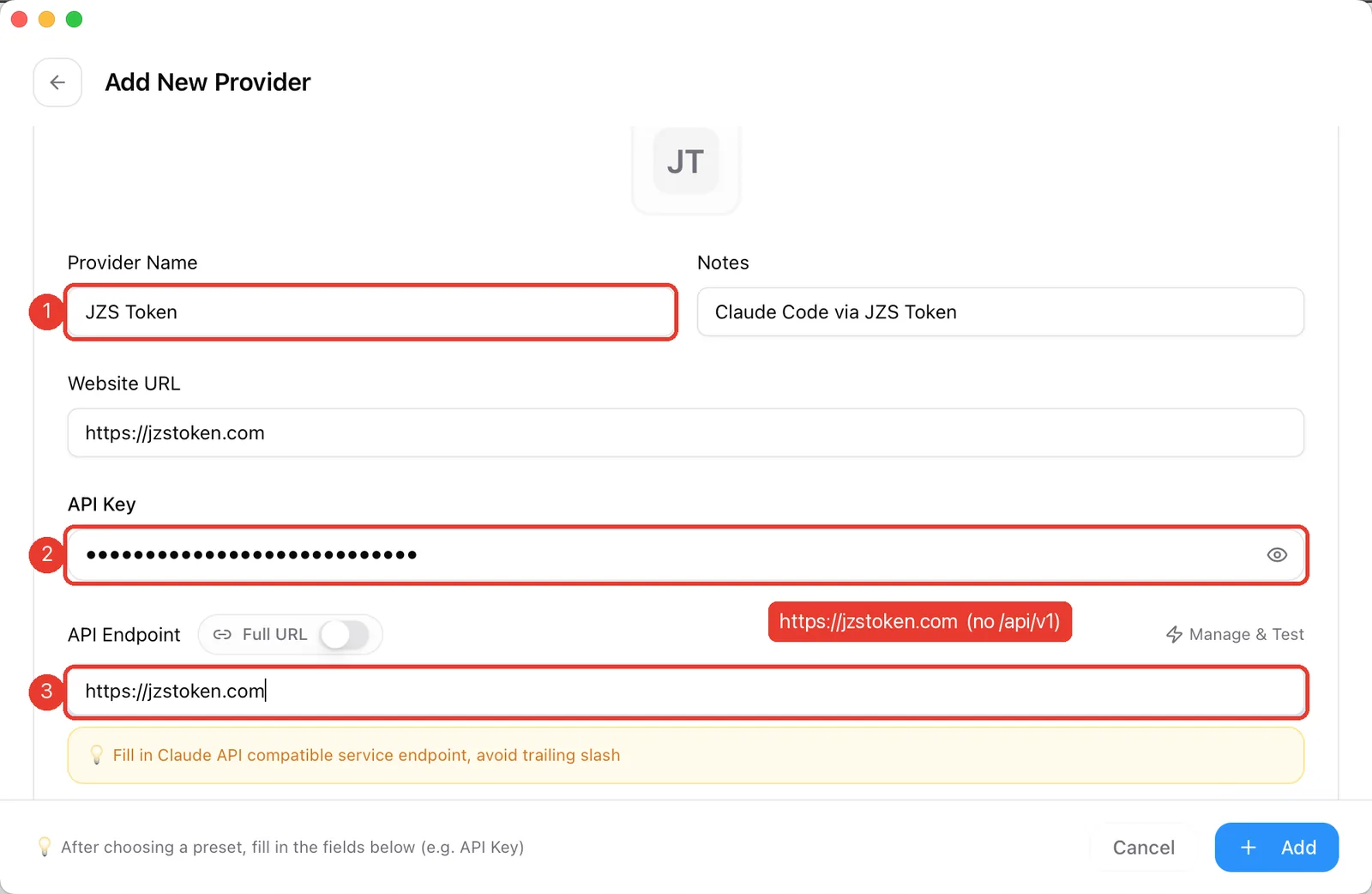
3. Fill in the form
- Provider Name: anything you like, for example
JZS Token. Notes and Website URL are optional. - API Key: paste your key (it starts with
sk-). - API Endpoint:
https://jzstoken.com, with no trailing slash and no/api/v1. Leave Full URL off.
Scroll a little further to check the Config JSON preview. It should show exactly these two values. This is what CC Switch writes to ~/.claude/settings.json.
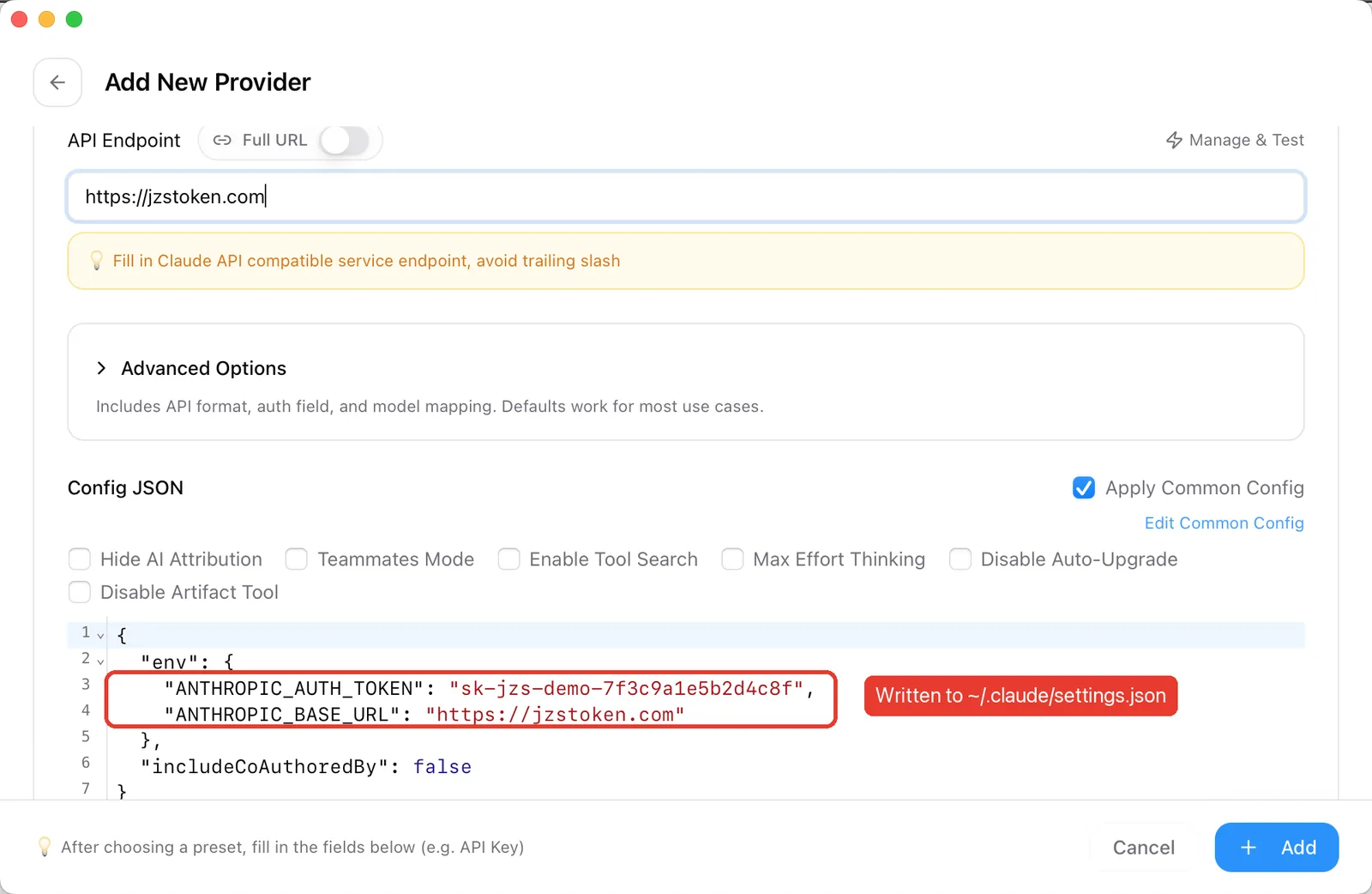
Click Add in the bottom-right corner.
4. Make sure it is the provider in use
The first provider you add becomes active straight away. If you already had another one, hover over the JZS Token card and click Enable. The active card is highlighted and its button reads In Use.
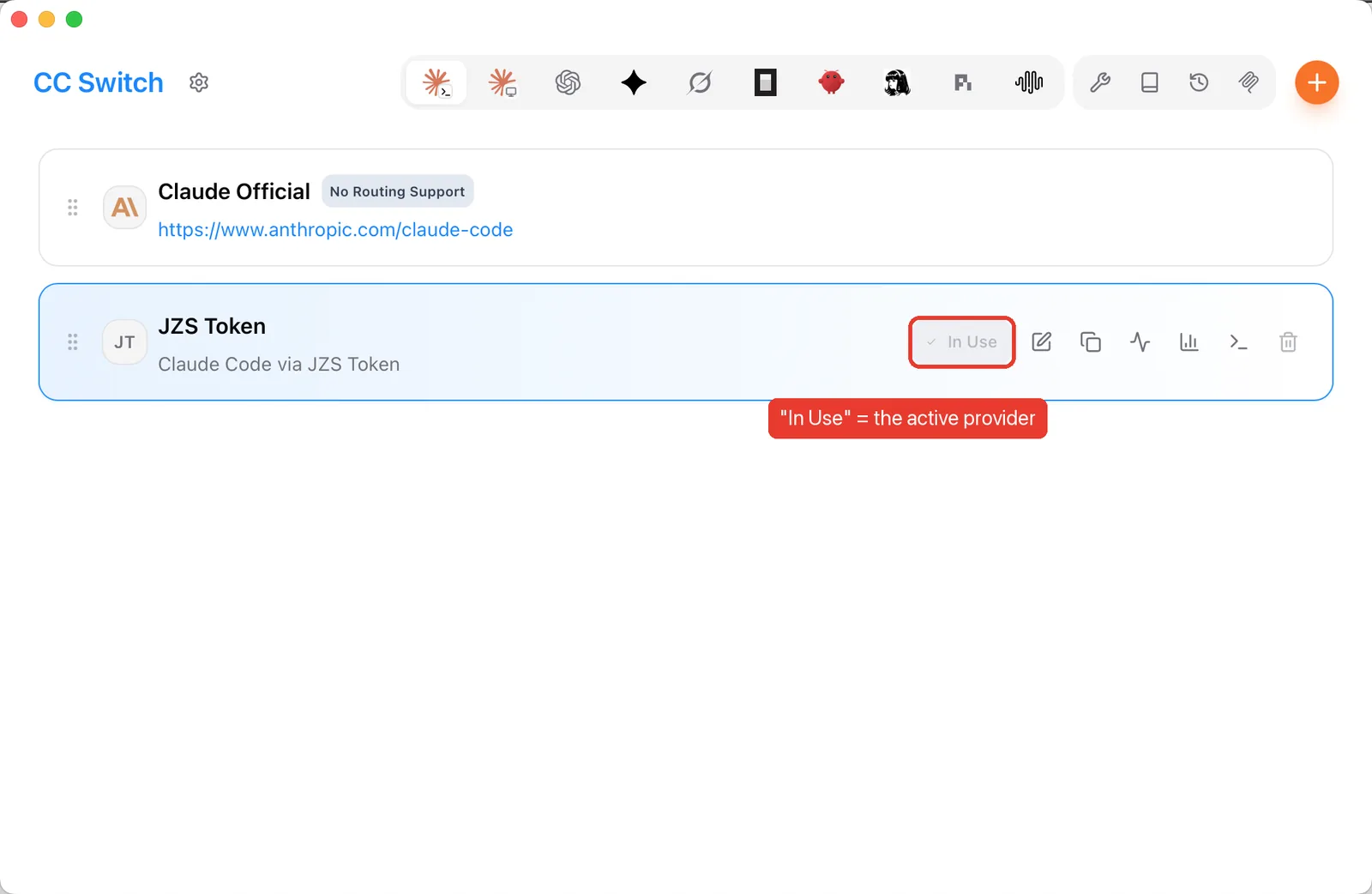
Configured, but the chat never replies?
Check these in order:
- The API Endpoint is
https://jzstoken.com, nothttps://jzstoken.com/api/v1. - The JZS Token card shows In Use, and you restarted Claude Code after switching.
- Your key is active and your balance is above zero on the dashboard.
- No old
ANTHROPIC_BASE_URLorANTHROPIC_API_KEYis set in your shell profile. Environment variables override CC Switch.
Still stuck? Turn on CC Switch's local routing. Claude Code then talks to CC Switch on your own machine, and CC Switch forwards each request to JZS Token. Its Rectifier also fixes small request-format differences that can make a chat hang.
- Click the gear icon next to the CC Switch logo to open Settings.
- Open the Routing tab (1). Expand Local Routing.
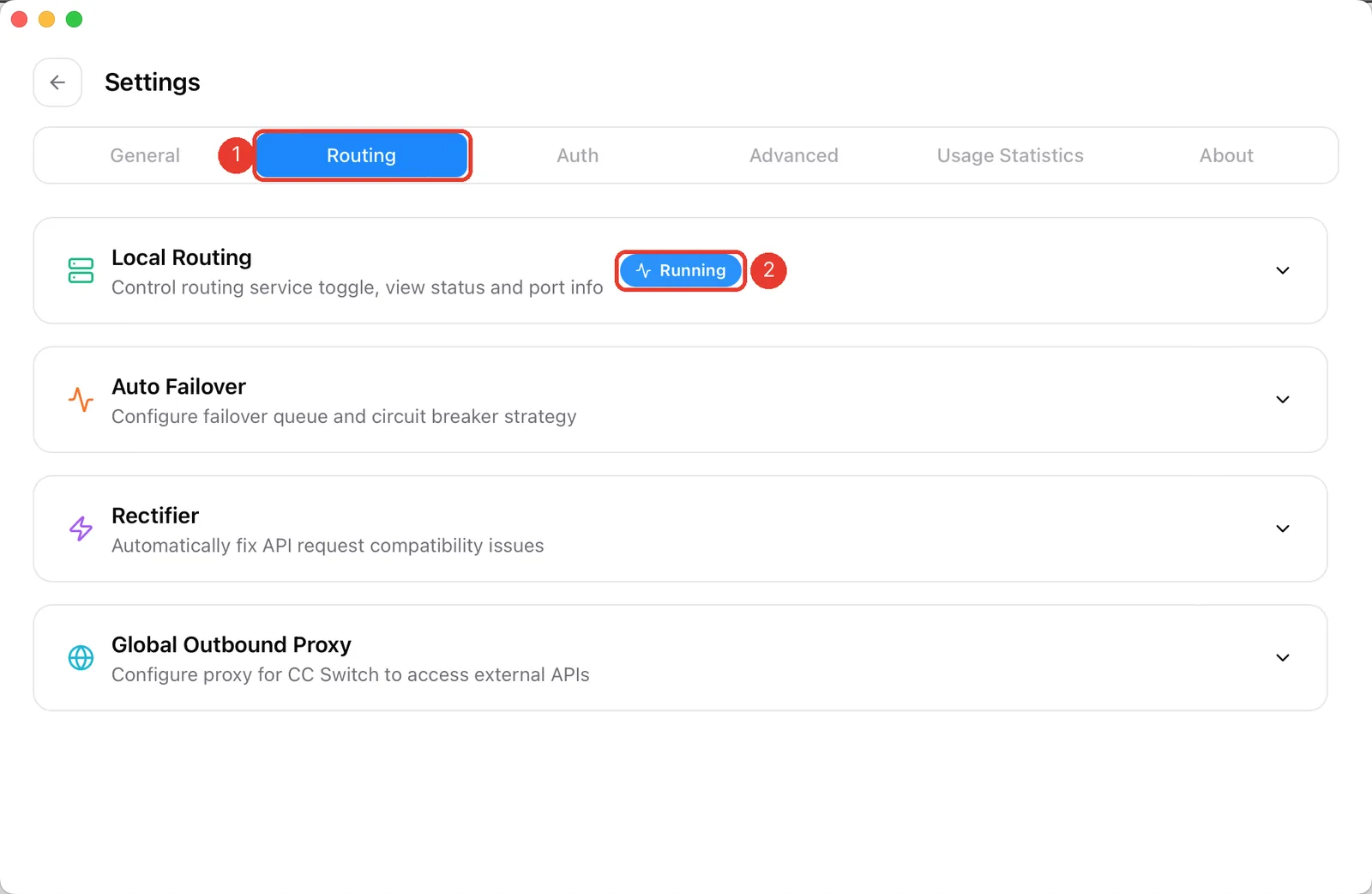
- Switch on Routing Master Switch (1). The badge changes to Running.
- Under Routing Enabled, switch on Claude (2).
- Start a new Claude Code session.
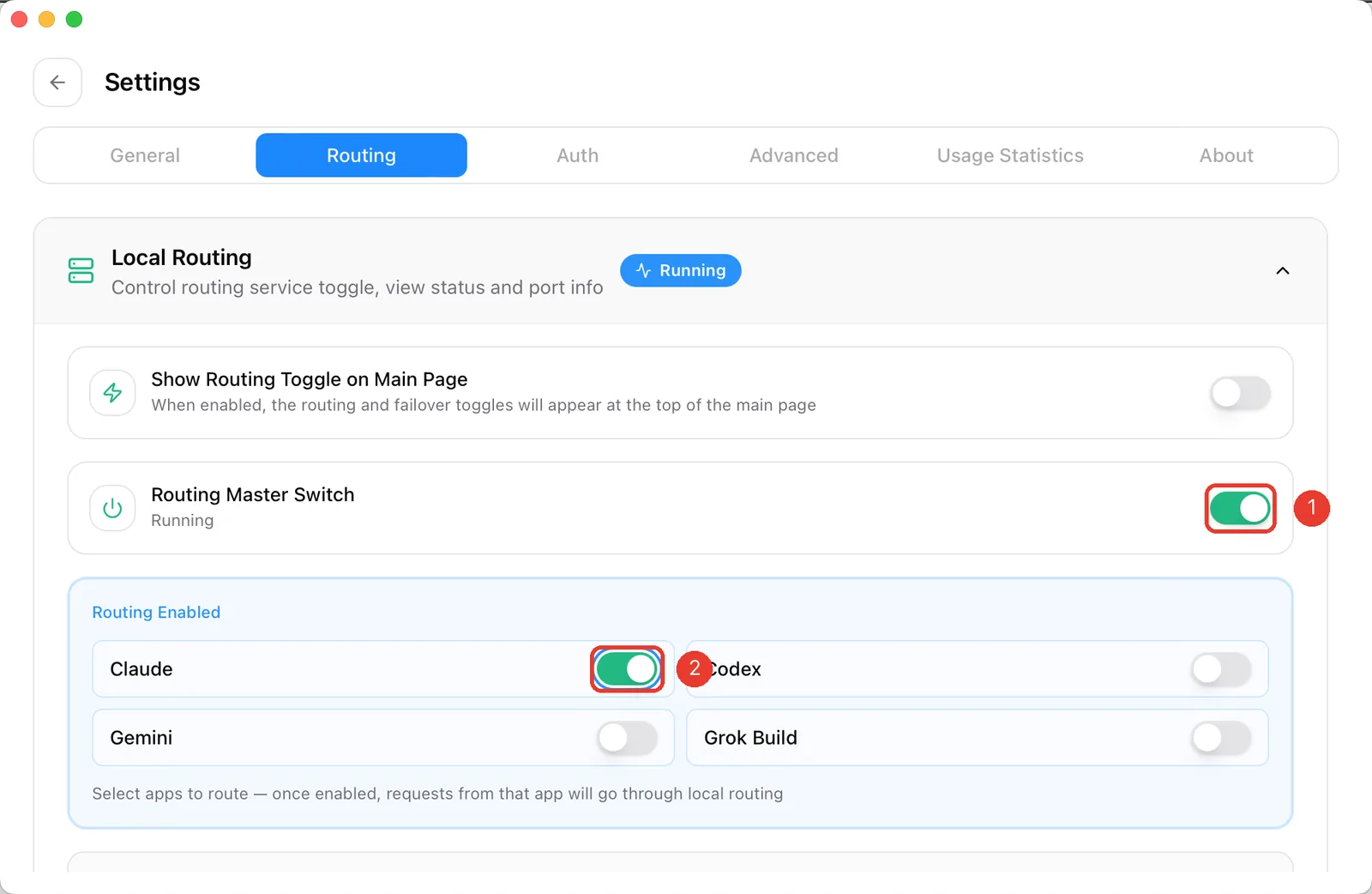
http://127.0.0.1:15721, so CC Switch has to stay open. If you quit it, Claude Code cannot connect. To go back to a direct connection, switch Claude off again under Routing Enabled.None of this helped? Contact support with a screenshot of the error. Never include your full key.
Manual setup from the command line
Prefer not to use CC Switch? Install Claude Code and set two environment variables.
🖥️ Windows 10 / 11
Install, PowerShell:
irm https://claude.ai/install.ps1 | iex
Install, CMD:
curl -fsSL https://claude.ai/install.cmd -o install.cmd && install.cmd && del install.cmd
Verify with claude --version, then set the variables. PowerShell:
[Environment]::SetEnvironmentVariable("ANTHROPIC_AUTH_TOKEN", "sk-your-key-here", "User")
[Environment]::SetEnvironmentVariable("ANTHROPIC_BASE_URL", "https://jzstoken.com", "User")
or CMD:
setx ANTHROPIC_AUTH_TOKEN "sk-your-key-here"
setx ANTHROPIC_BASE_URL "https://jzstoken.com"
Open a new terminal and run claude.
🍏 macOS 10.15 or later
Install with Homebrew:
brew install --cask claude-code
or the install script:
curl -fsSL https://claude.ai/install.sh | bash
Verify with claude -v, then set the variables (zsh is the default shell):
echo 'export ANTHROPIC_AUTH_TOKEN="sk-your-key-here"' >> ~/.zshrc
echo 'export ANTHROPIC_BASE_URL="https://jzstoken.com"' >> ~/.zshrc
source ~/.zshrc
🐧 Linux (Ubuntu 18.04+, Debian 9+, CentOS 7+)
curl -fsSL https://claude.ai/install.sh | bash
Bash (Ubuntu / Debian):
echo 'export ANTHROPIC_AUTH_TOKEN="sk-your-key-here"' >> ~/.bashrc
echo 'export ANTHROPIC_BASE_URL="https://jzstoken.com"' >> ~/.bashrc
source ~/.bashrc
Zsh (Fedora / CentOS):
echo 'export ANTHROPIC_AUTH_TOKEN="sk-your-key-here"' >> ~/.zshrc
echo 'export ANTHROPIC_BASE_URL="https://jzstoken.com"' >> ~/.zshrc
source ~/.zshrc
sk-your-key-here with your own key. Then cd into a project folder and run claude.Troubleshooting
- "command not found": the install did not finish, or its folder is not on your PATH. Open a new terminal window and try again.
- "Unable to connect to Anthropic services" on first launch: see skip the first-run check.
- 404 Not Found:
ANTHROPIC_BASE_URLends with/api/v1. Change it tohttps://jzstoken.com. - 401 Unauthorized: the key is wrong or disabled. Use
ANTHROPIC_AUTH_TOKEN, notANTHROPIC_API_KEY. - 402: your balance is too low for the request. Add credits.
- 403 model not supported: your key type does not cover that model. Check the model catalog.