OpenCode Setup Guide
OpenCode is an open-source AI coding agent for the terminal and desktop. This guide installs it, adds JZS Token as a provider, and picks a model.
What you need
1. Install OpenCode
Pick one. When you are done, typing opencode in a terminal should start it.
| Method | Command | Works on |
|---|---|---|
| npm | npm install -g opencode-ai | Any OS with Node.js 18+. |
| Homebrew | brew install anomalyco/tap/opencode | macOS and Linux. |
| Install script | curl -fsSL https://opencode.ai/install | bash | macOS and Linux. |
The desktop app is on opencode.ai. It reads the same config as the terminal version.
2. Add JZS Token in CC Switch
Open the OpenCode tab
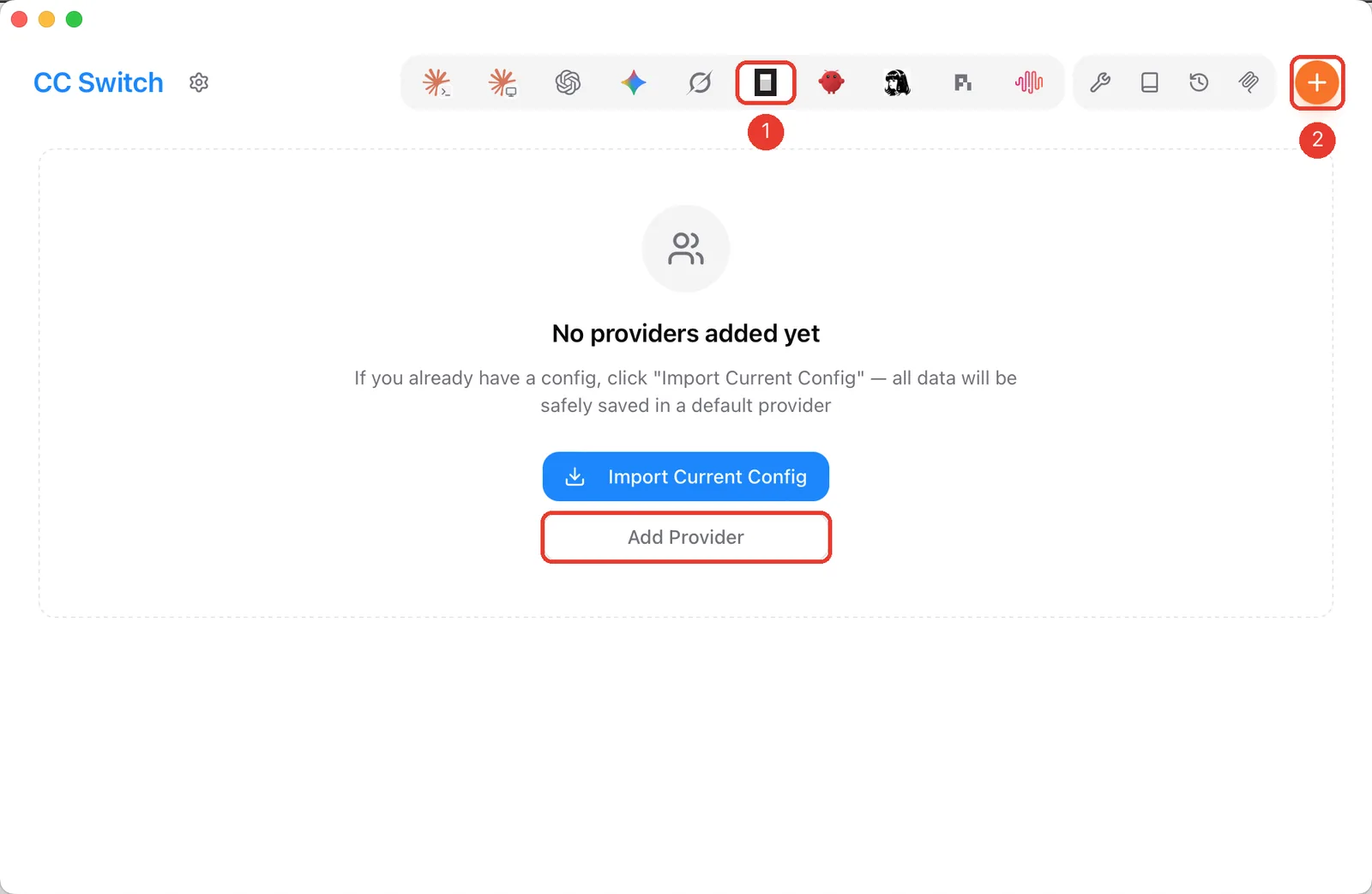
In CC Switch, select the OpenCode icon (1) and click + (2), or Add Provider in the middle of the empty list. Keep Custom Configuration selected on the next screen.
Fill in the provider
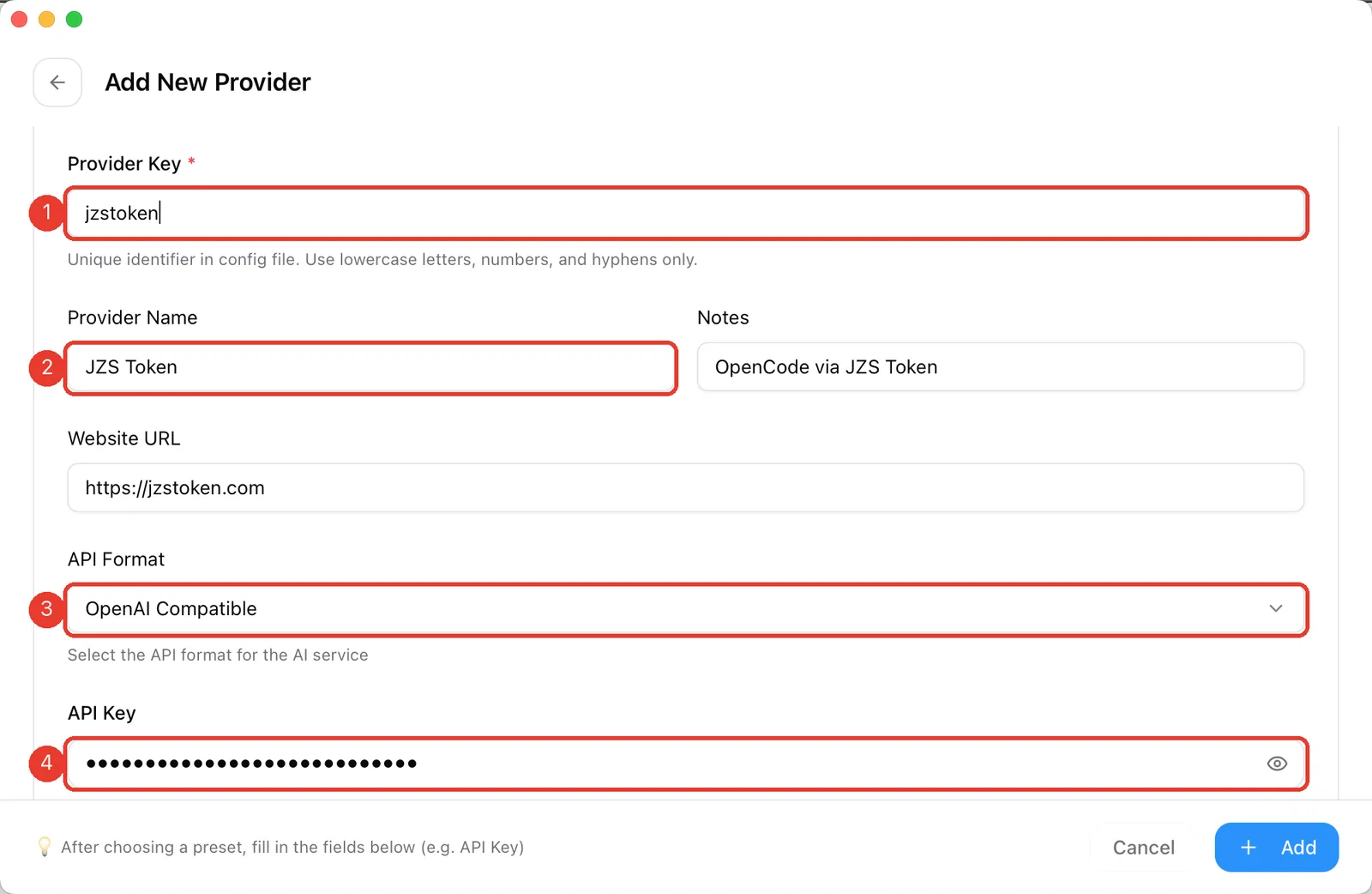
- Provider Key: a short ID, lowercase with hyphens, for example
jzstoken. It becomes the provider name in OpenCode's model list. - Provider Name:
JZS Token. - API Format:
OpenAI Compatible. - API Key: paste your key.
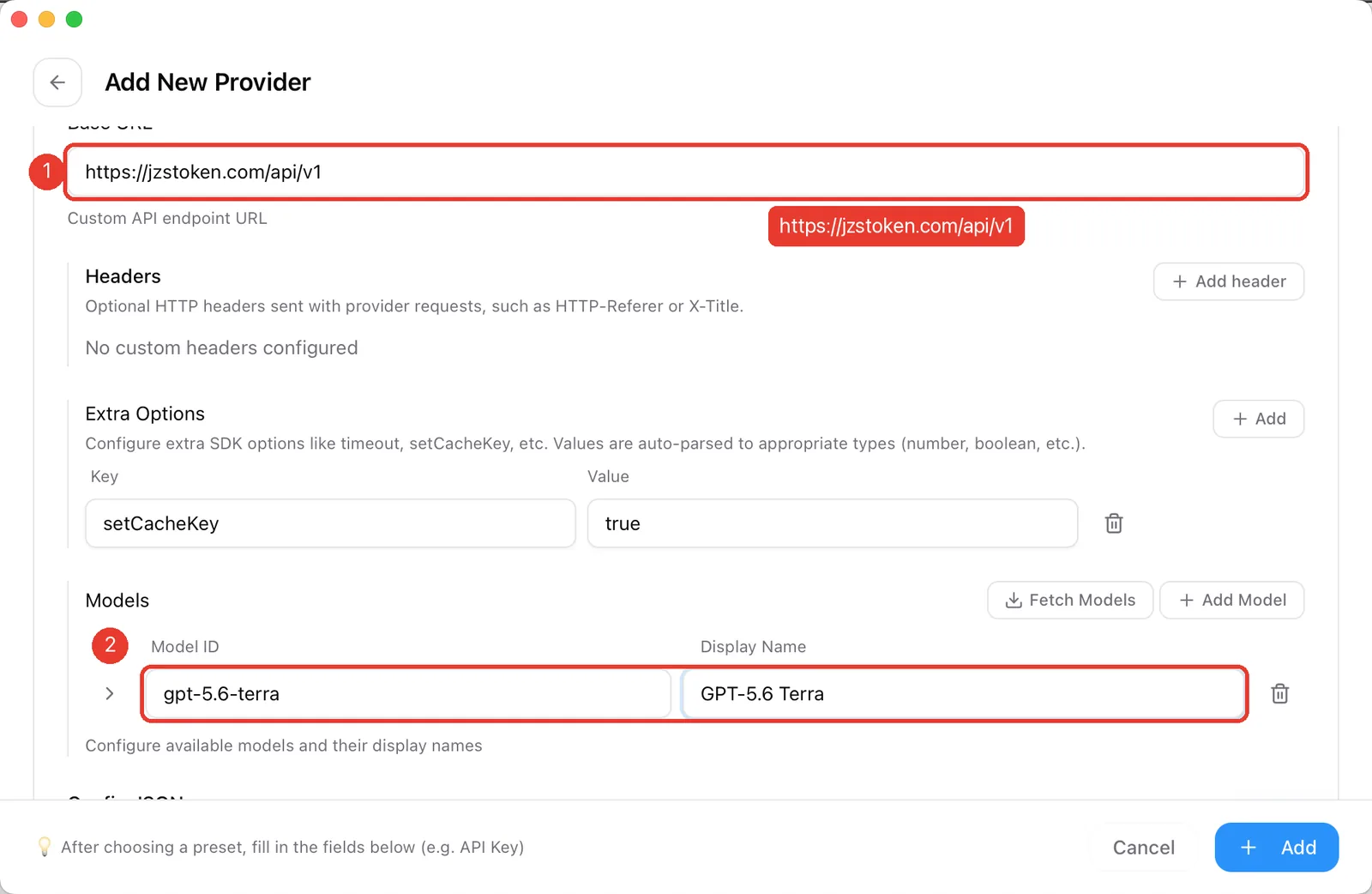
Scroll down and set:
- Base URL:
https://jzstoken.com/api/v1. - Models: click Add Model, enter the Model ID (for example
gpt-5.6-terra) and a display name. Add one row per model you want to use.
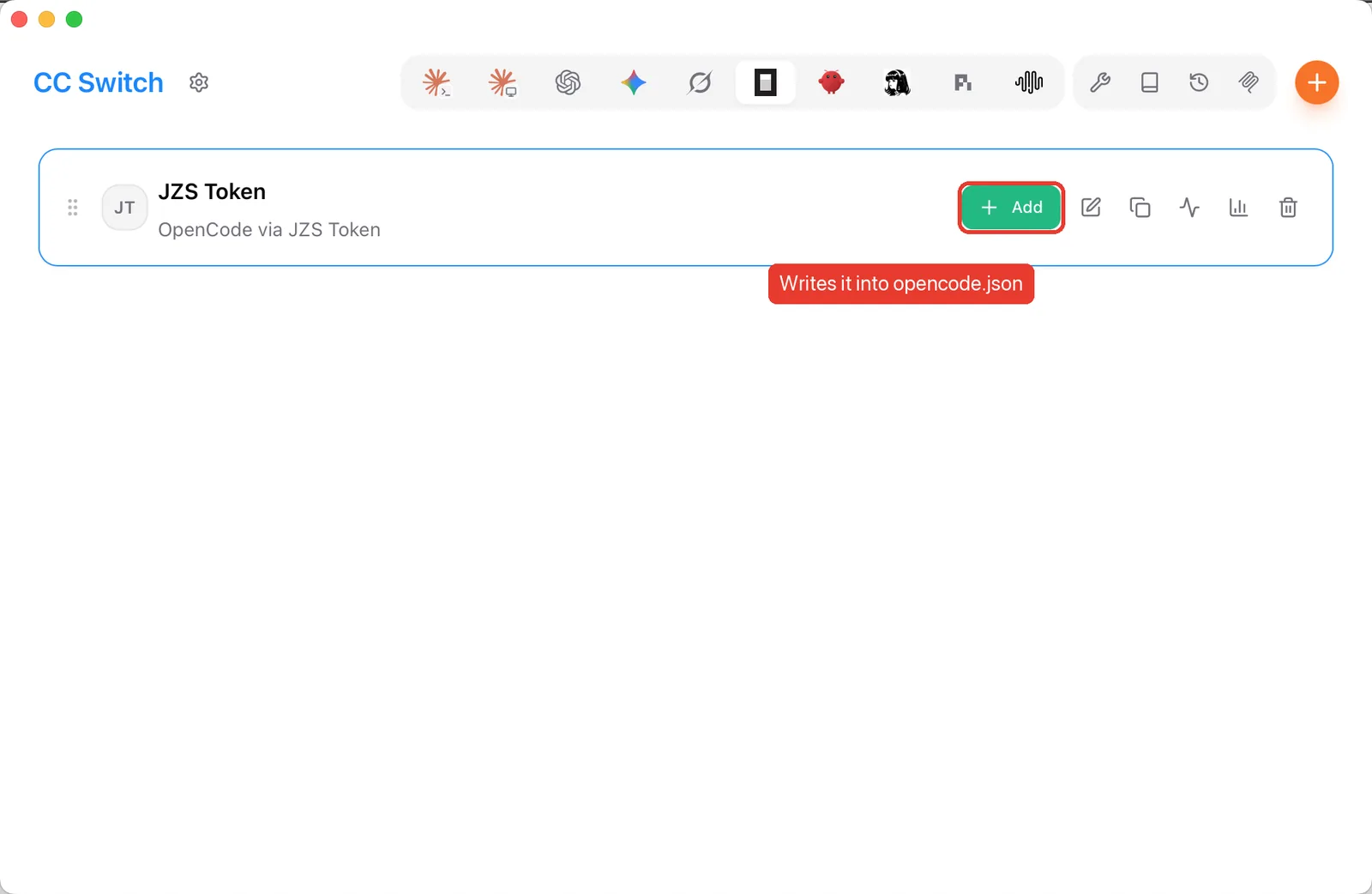
Click Add. Then click Add on the provider card itself. That writes the provider into OpenCode's opencode.json, and the button turns into Remove.
3. Switch to the model in the terminal
- Run
opencodein your project folder. - Press
Ctrl + Pto open the command list.
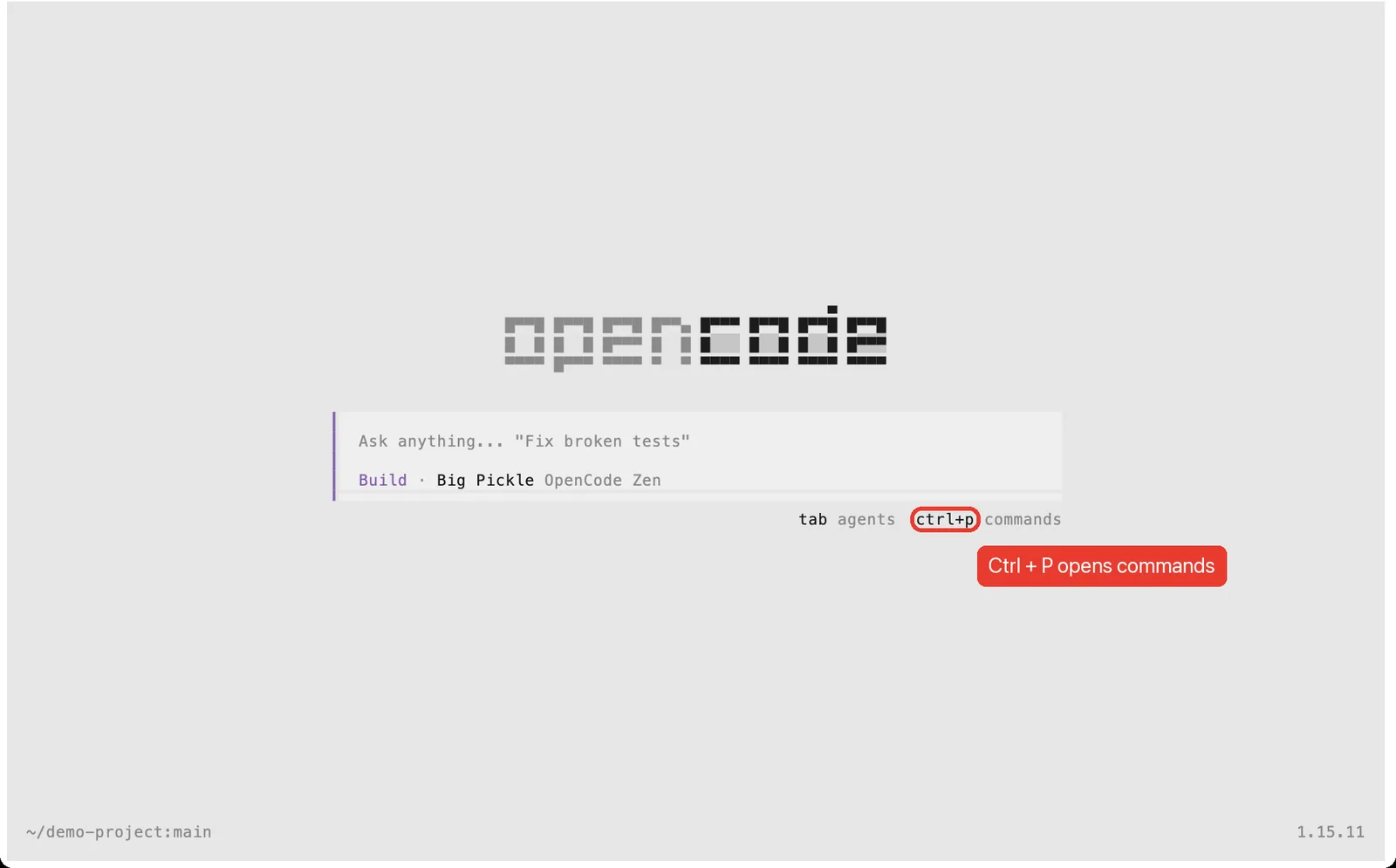
- Type
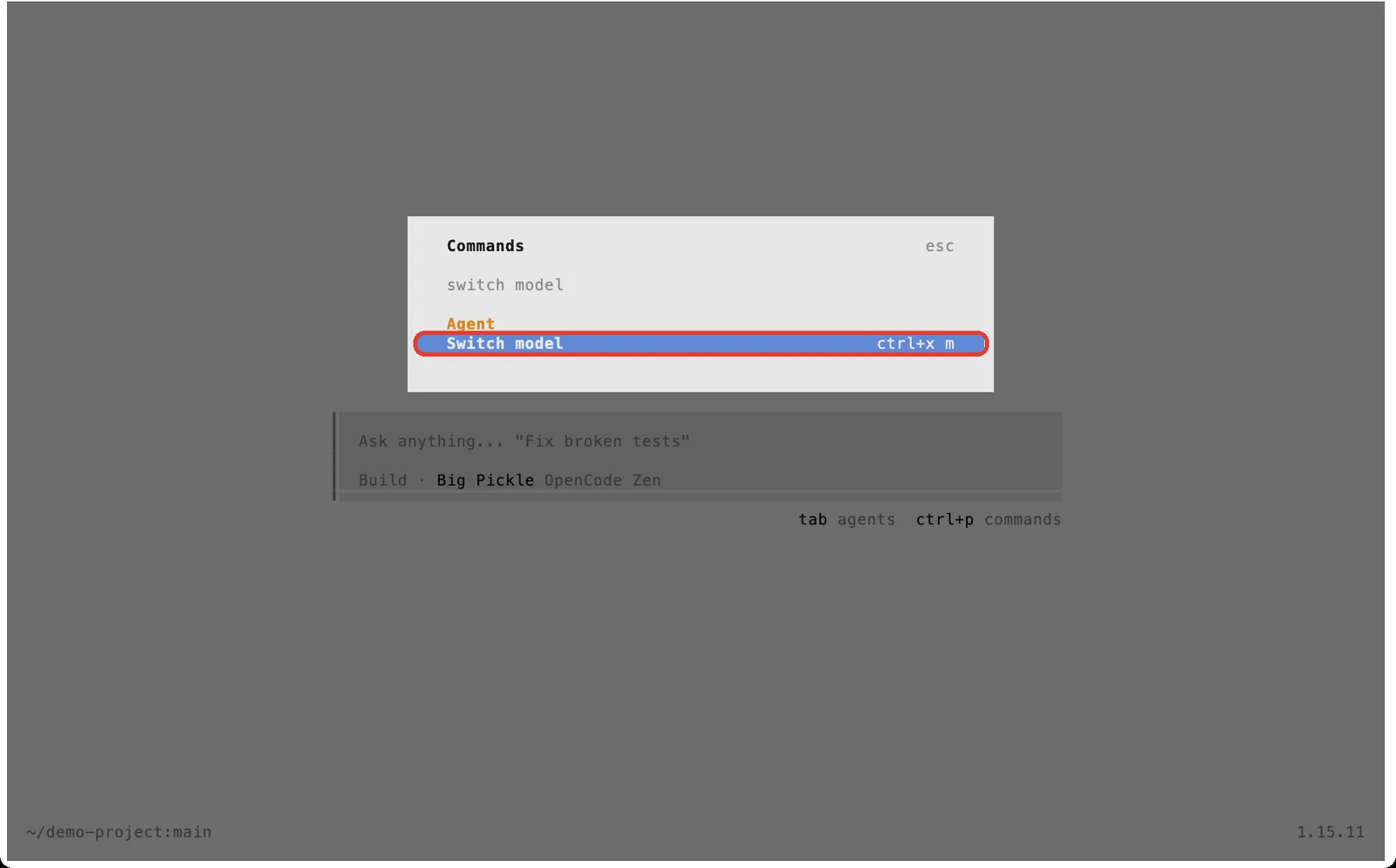
switch modeland press Enter (shortcut:Ctrl + X, thenM).
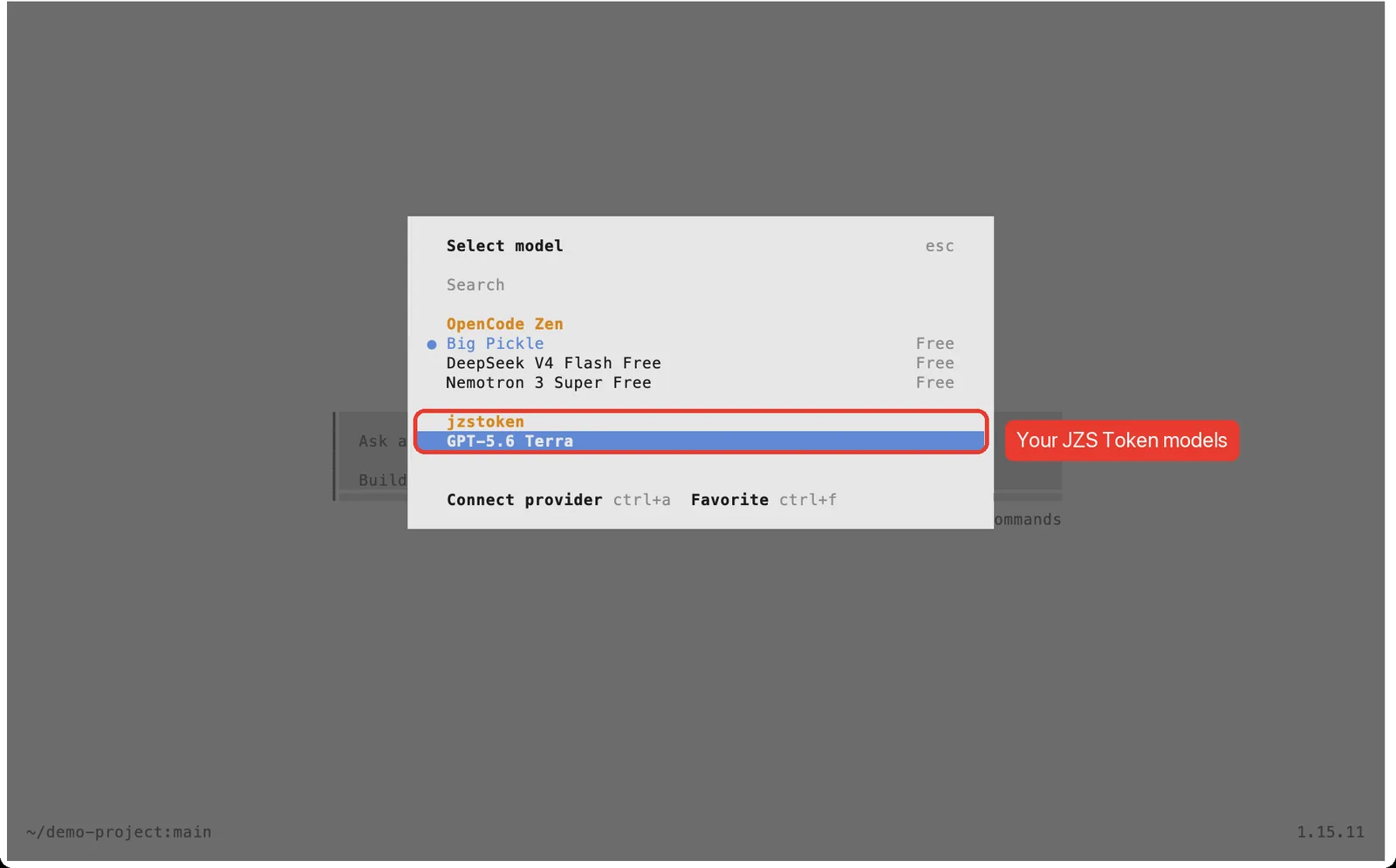
- Scroll to the jzstoken group, select your model and press Enter.
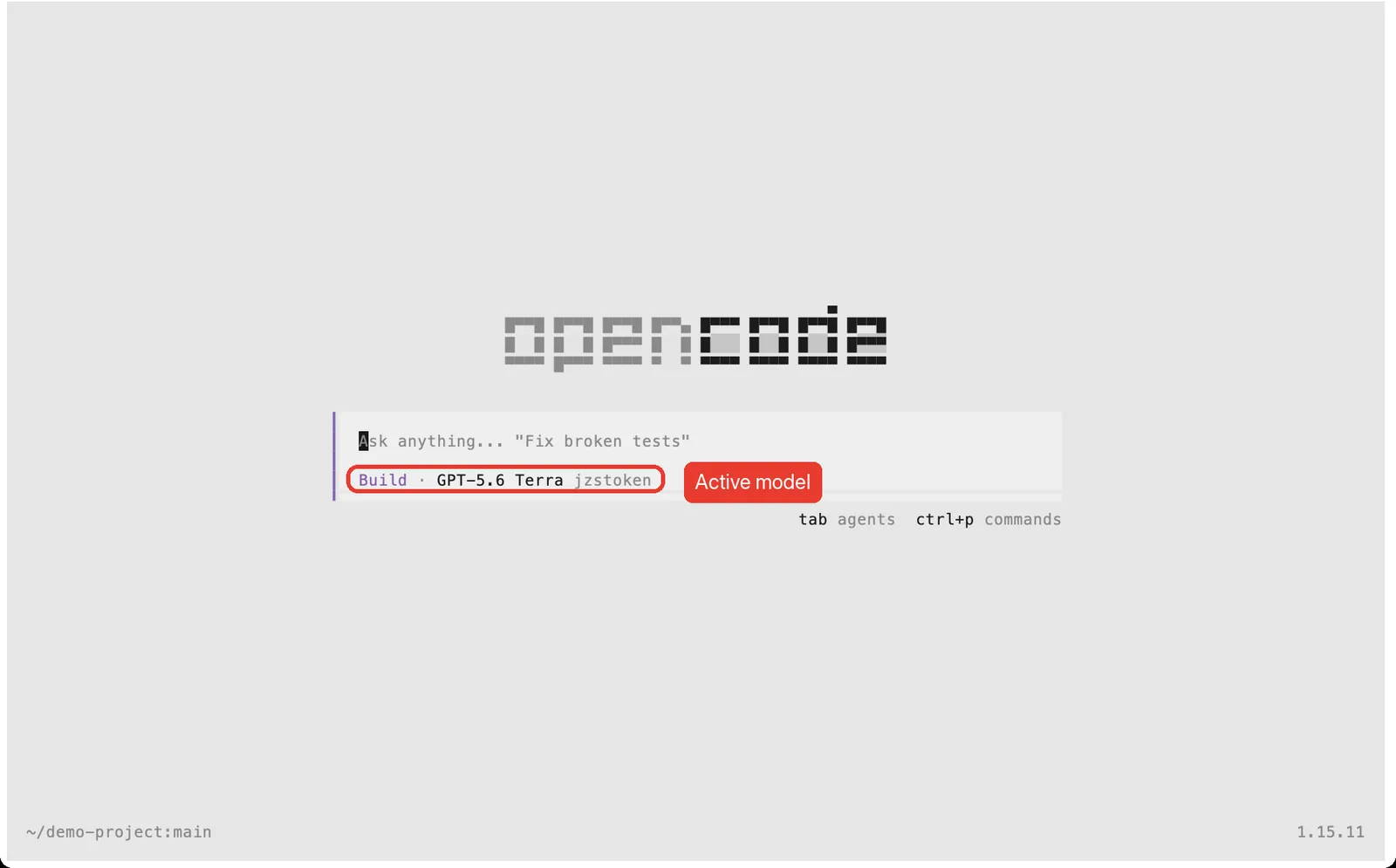
The prompt bar now shows the model and the provider. Start typing.
Without CC Switch: edit opencode.json
OpenCode reads ~/.config/opencode/opencode.json (Windows: %USERPROFILE%\.config\opencode\opencode.json). Add a provider block like this, merging it with anything already in the file:
{
  "$schema": "https://opencode.ai/config.json",
  "provider": {
    "jzstoken": {
      "name": "JZS Token",
      "npm": "@ai-sdk/openai-compatible",
      "options": {
        "baseURL": "https://jzstoken.com/api/v1",
        "apiKey": "sk-your-key-here"
      },
      "models": {
        "gpt-5.6-terra": { "name": "GPT-5.6 Terra" }
      }
    }
  }
}
Restart OpenCode, then switch models as in step 3.
Troubleshooting
| Problem | Fix | Details |
|---|---|---|
| "opencode: command not found" | Open a new terminal. | The npm or brew install folder must be on your PATH. |
| No jzstoken group in the model list | Click Add on the card in CC Switch. | Then quit and restart OpenCode. |
| Requests fail | Check Base URL, key and model ID. | Base URL is https://jzstoken.com/api/v1; the model ID must match the catalog. |
| Replies are slow | Try a faster model. | Compare speeds in the catalog. |